- Product Updates
- Posts
- [Feature Update] 🌟 Add Members Automatically Without Member Limits
[Feature Update] 🌟 Add Members Automatically Without Member Limits
Automated Sources, Free Member Counts, New Member Status

Mica 🔷 Referral Rock
April 22, 2026 • Estimated Reading Time: 2 minutes
Hey it's Mica,
We keep coming back to the same question: what causes a referral program to be successful after launch?
It always comes back to activation. Activation is about turning a contact into an active referral program participant. Someone who has their referral link and is sharing.
Most referral programs are smaller than they should be because the people who want to refer never get activated. The contacts exist but don’t become part of the program. The person responsible for adding them gets busy, forgets, or lets too much time pass.
Automated Sources closes this gap. Contacts are now automatically added to your program as soon as they qualify. No missed contacts. No manual steps.
✨ Automated Sources gives you free members. 10% of your total member limit can be added via automated sources for free each month. Example - if you have a 10K member limit, you'll get 1,000 free members per month.
Let's dive in. 👇👇
-Mica
Head of Operations
P.S. Need help setting up Automated Sources? Just reply to this email.
🔌 What are Automated Sources?
Add and invite members to your program automatically when contacts meet certain conditions with Automated Sources.
Automated Sources are part of the Invite Contacts feature that continuously adds contacts to the referral program from the sources you choose. Every qualified contact is added as a Preloaded Member in your program ready to be activated.
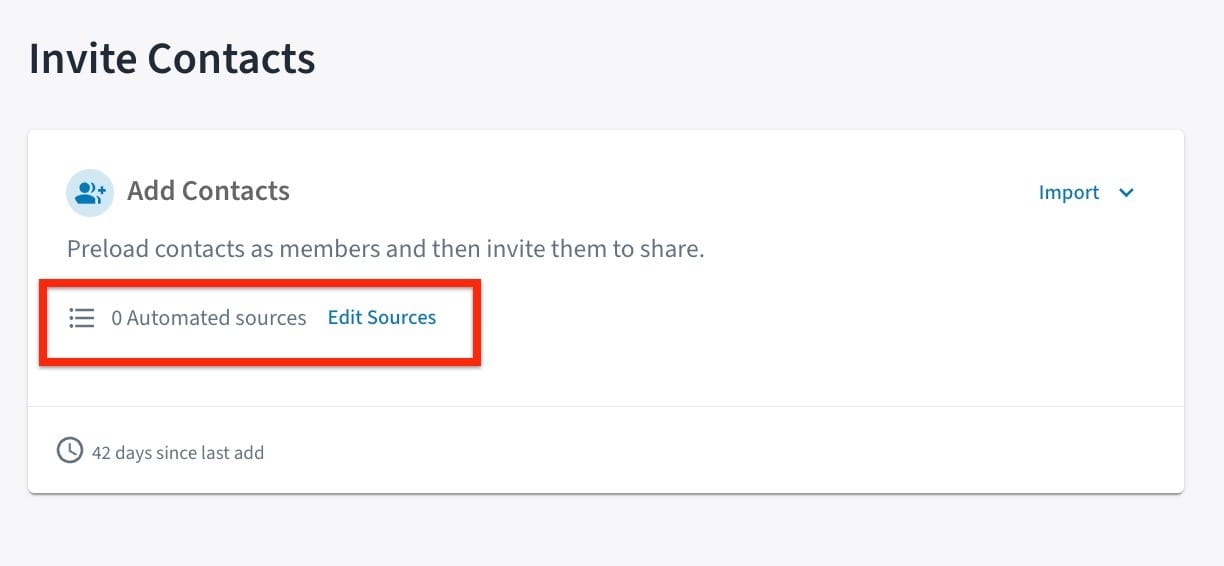
🔄 Automate the entire member lifecycle
Select your Automated Sources. Configure your Invite Scheduler. Everything else happens on its own.
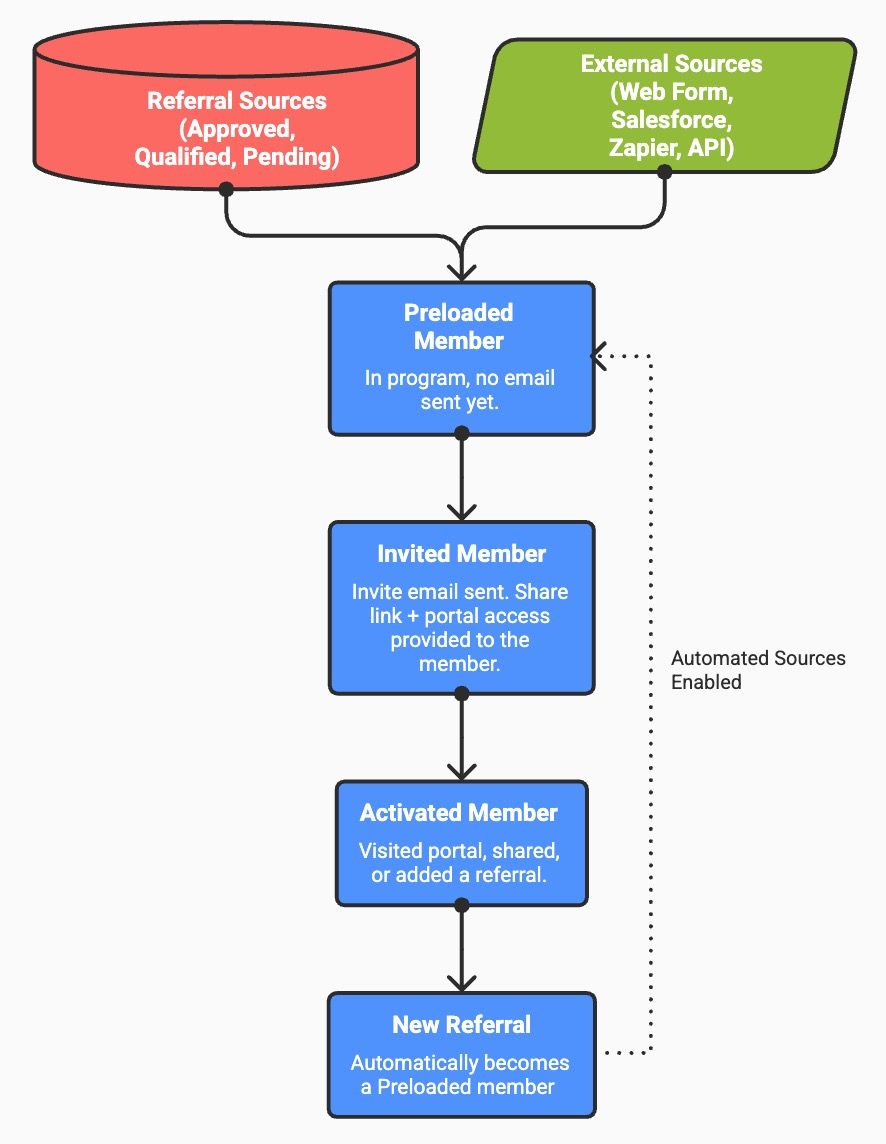
A contact qualifies. They're added to your referral program automatically. An invite goes out on your next scheduled send. Seven days later they get a reminder email if they don't activate. Then every month thereafter, they get a summary that brings them back to share.
1) Add Automated Sources (this release)
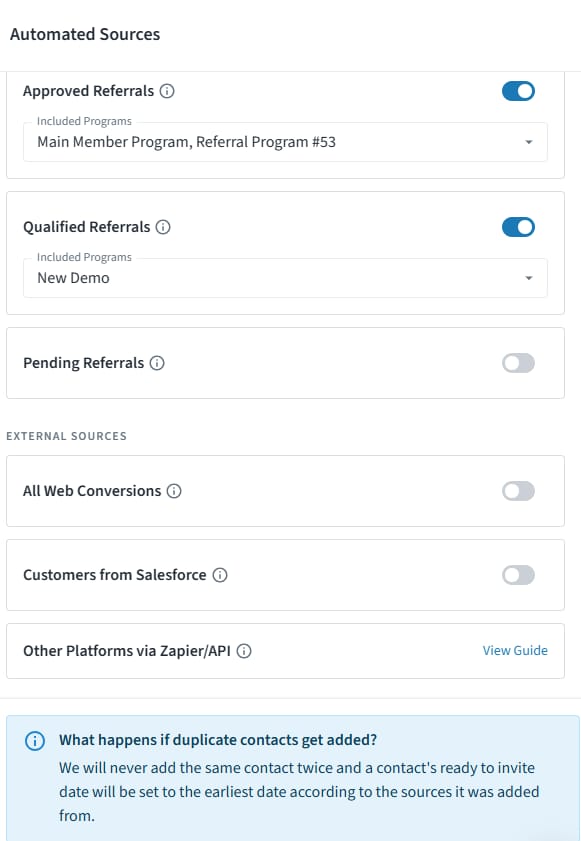
Configure which automated sources you want to enable. All members added from automated sources show up as Preloaded (until you invite them).
Referral Sources - the existing referrals in your program (Approved, Qualified, and Pending)
External Sources - non-referral contacts you want to invite (Web Forms, HubSpot, Salesforce, Zapier, API)
2) Activate Members
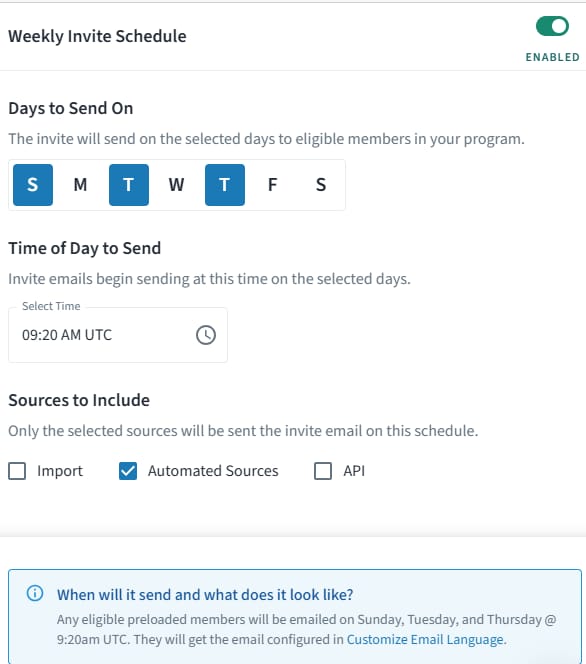
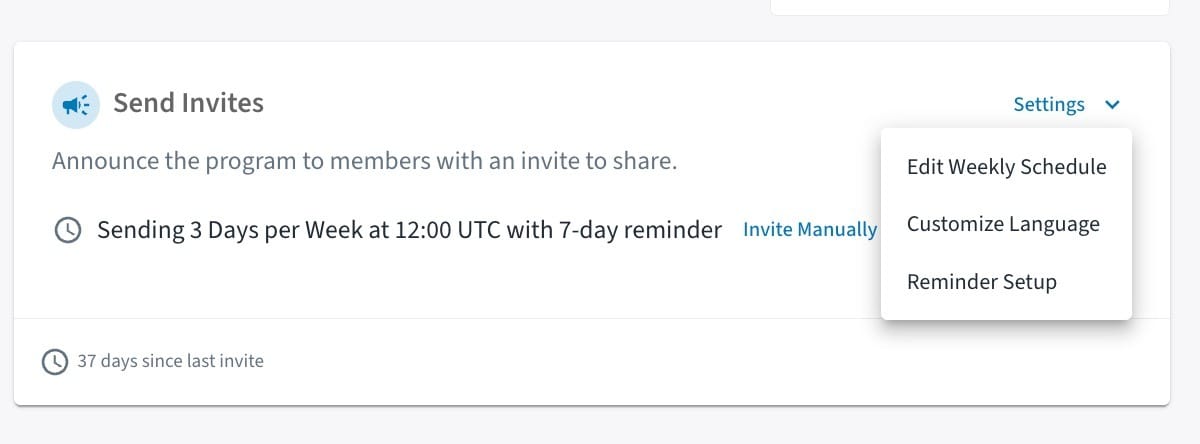
Configure the Weekly Invite Scheduler to send invite emails to members added from your automated sources. From that point, every eligible preloaded member receives an invite email on your scheduled send days. No manual review required.
Send different emails over time to reintroduce the program and bring people back in. These emails help keep your program top of mind and remind members to share.
Reminder Email (7-days after initial invite if they don’t activate)
Monthly Summary Email (first week of the month)
Program Updates (triggered based on program events)
🔍 See where every contact stands
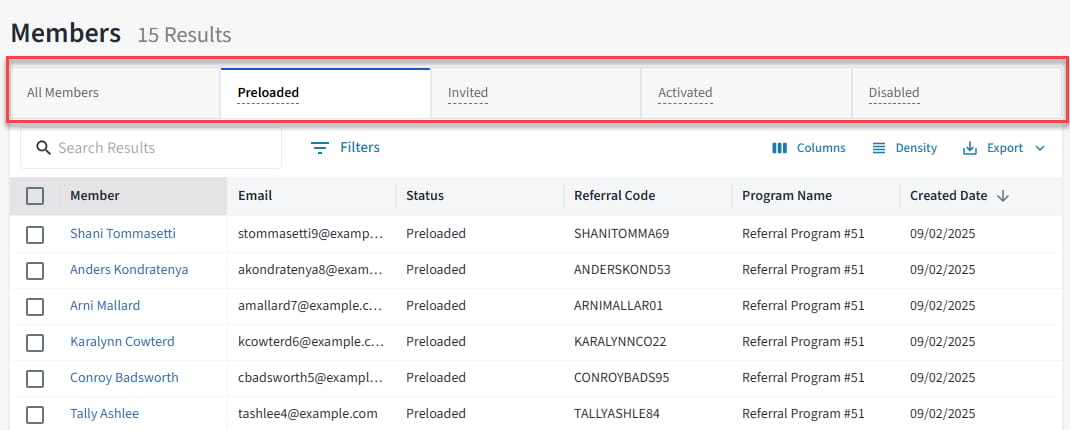
Before this release, invited and uninvited members looked identical. Both showed as "Preapproved." There was no way to know who had heard from you. Now the member statuses have clearer names so you can see where everyone stands at a glance.
Preloaded - in your program, not yet invited. Receives no emails.
Invited - received an invite, hasn't activated yet. Eligible for a follow-up reminder and monthly summary.
Activated - clicked their share link or logged in. Receives monthly summary and relevant program update emails.
⏮ And in case you missed it…
Here are some more recent posts from our team that you may have missed!